People often generate subtitles from videos to help viewers follow stories in noisy public spaces. High engagement and watch time come naturally when your audience can read every word, which satisfies social media algorithms. Filmora simplifies the process using AI to create automatic subtitles to replace manual typing. In this tutorial, you’ll learn to generate subtitles from a video easily, so if you need more reach, then keep scrolling.
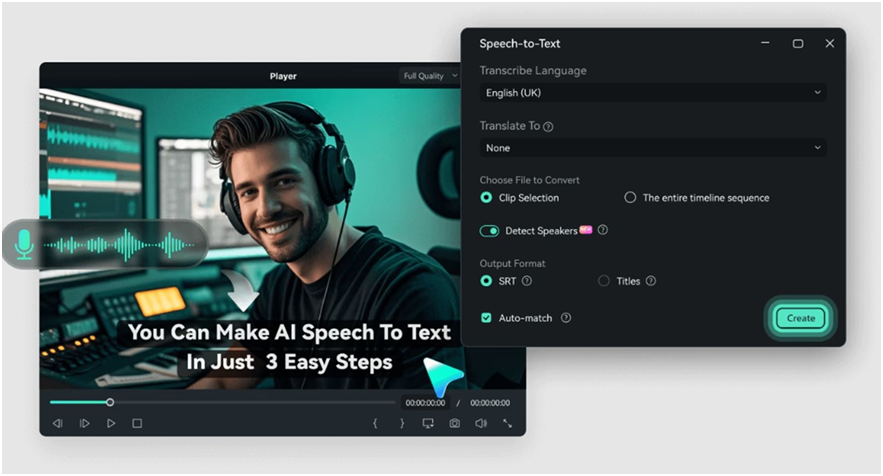
Part 1. What To Do Before Generating Subtitles From Videos?
High-quality input helps you generate subtitles for video files with 99% accuracy in video editing software. Still, clear audio remains essential even if you have already filmed your footage. Here are the best ways to refine your sound before you start the transcription process:
- Apply background noise removal to help the auto caption AI tool identify your speech clearly.
- Avoid overlapping voices if possible because AI may struggle to separate two people talking at once.
- Choose the correct source language in the settings to generate automatic subtitles that match the recorded speech.
- Detach the audio from the video track to edit out loud pops or distracting clicks.
- Record in a quiet room to help the auto caption AI identify your speech clearly.
- Trim long pauses or stutters to help the timing of the text sync better.
- Balance the audio levels so the software can generate subtitles for a video without missing quiet sentences.
Part 2. How To Generate Subtitles From Video Automatically With AI?
Wondershare Filmora AI Speech-to-Text tool automates the audio-to-text transcription process so you can finish editing your projects faster. Accuracy reaches high levels across 45 different languages, such as English, Spanish, and German. Follow these steps to generate subtitles automatically for your videos and create professional videos in just minutes.
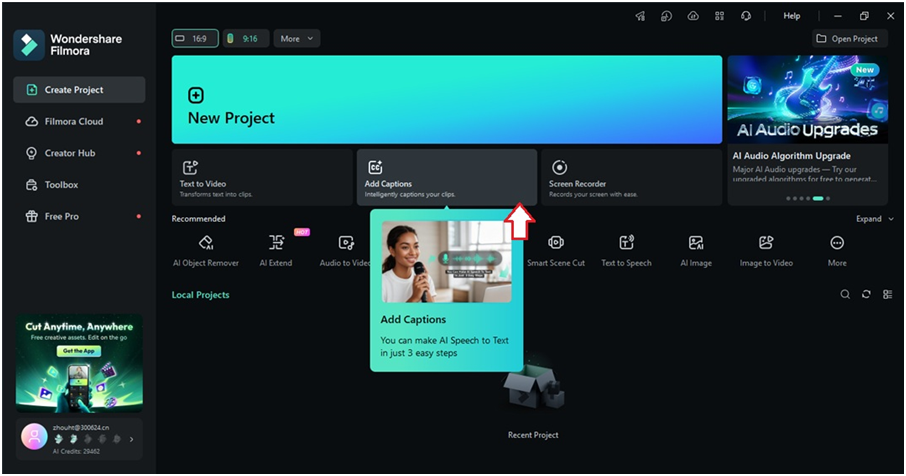
Step 1: Import the Video Launch Filmora and select the Add Captions option from the start-up window. Find and import your video and/or audio file in the file browser.
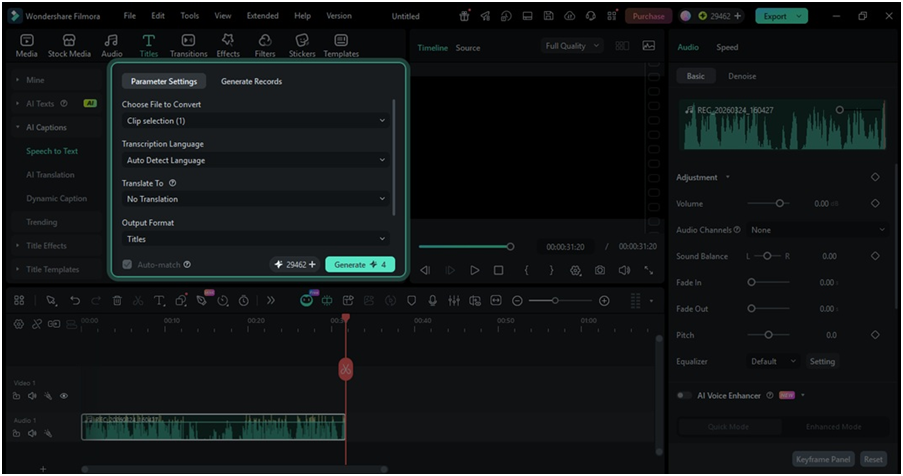
Step 2: Set Your Preferences Find the Parameter Settings tab. Correct language selection helps the AI auto caption generator recognize your speech well. Pick an output format like an SRT file or simple text fragments at this stage, then click Generate.
Step 3: Let AI Generate Subtitles Automatically
The software scans your audio to create automatic captions for videos in real time. Processing usually takes just a few moments, depending on the file length.
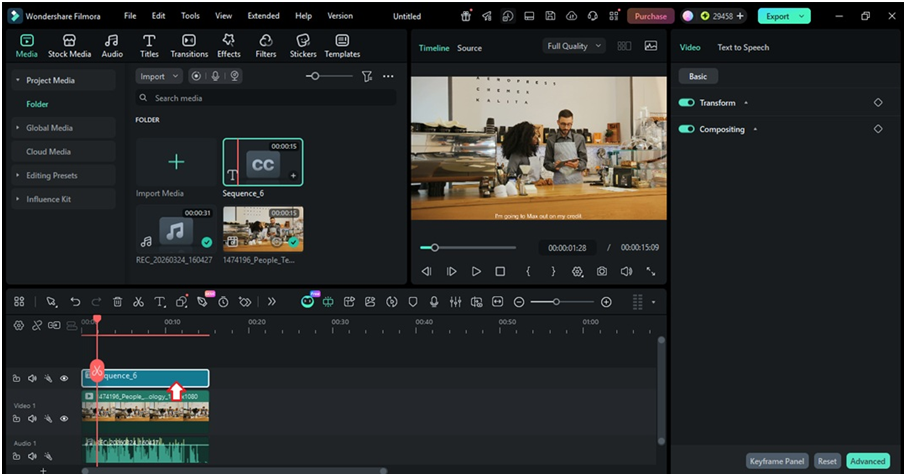
Step 4: Review and Refine the Results
Captions align with your video on the timeline once the transcription finishes. Click any segment to edit the text or change the style.
Part 3. How To Style AI-Generated Captions for Better Impact?
Standard white text often disappears against busy backgrounds and loses the viewer’s interest. You can easily adjust the results from the automatic subtitle generator in Filmora to match your brand colors. Personalized styles help your audience follow the story even in noisy environments.
Refine the Text Accuracy
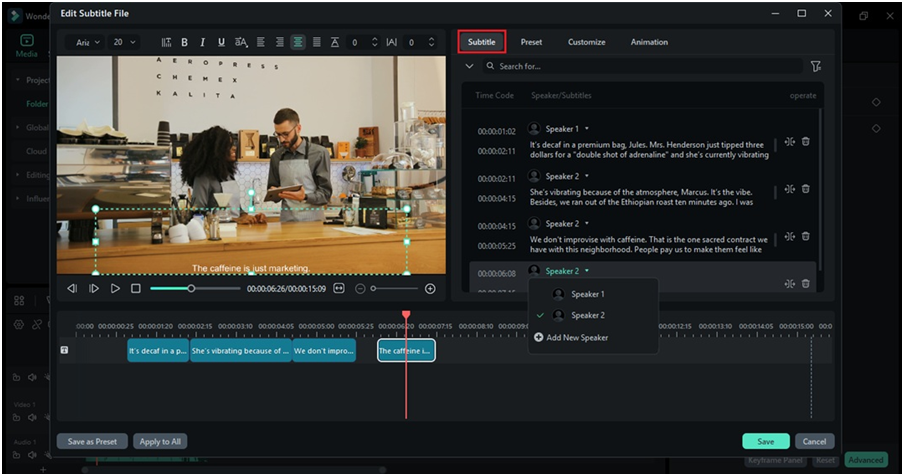
Open the Edit Subtitle File window and select the Subtitle tab to see your full transcript. Here, it displays everything made by the auto caption generator for the video AI tool. You can fix typos, split long lines, or add new spaces for speaker changes. Clean text helps your message remain clear and professional throughout the clip.
Change the Look
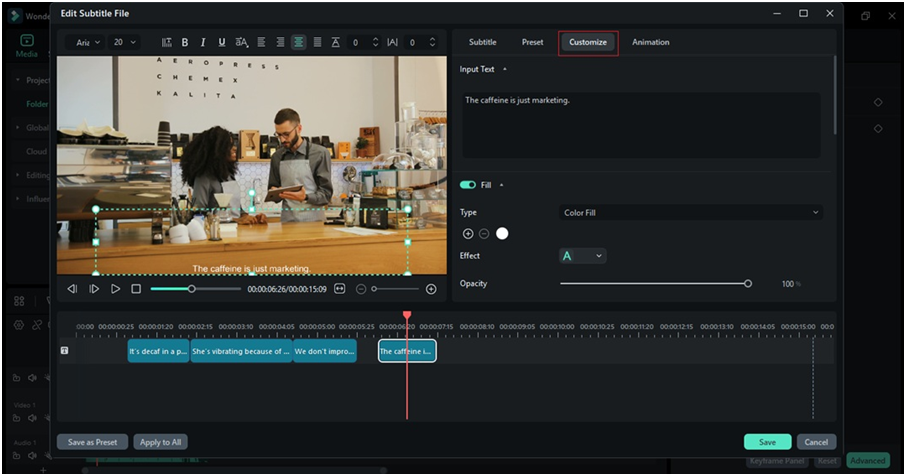
Double-click any caption on your timeline to adjust its appearance. The subtitle generator AI settings allow you to pick new font styles or change text colors. Visit the Customize tab to adjust the opacity and background blur so the words pop against your video.
Apply Motion
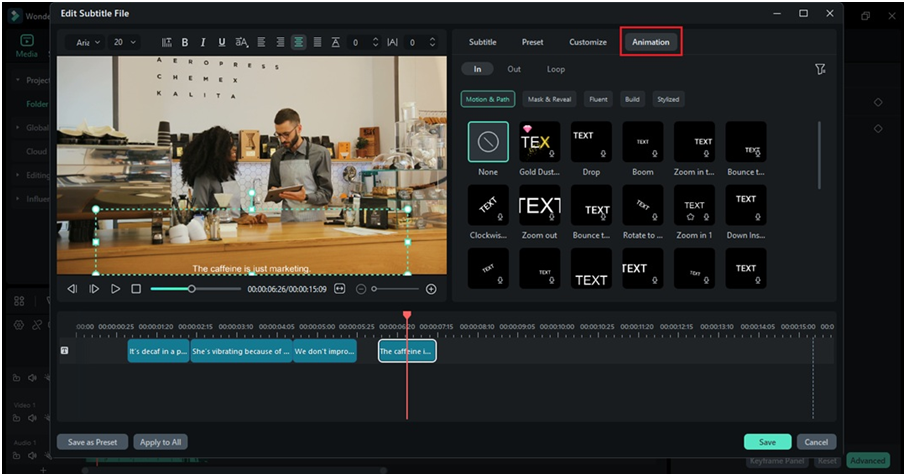
Filmora includes over 68 animated templates for your captions. You can make the text slide or bounce as people talk. These visual changes make your content stand out in busy social media feeds.
Part 4. Grow Your Global Audience With AI Subtitle Translation
Filmora includes many AI tools that help both beginners and pros finish video editing faster. You can translate your content for social media, business, and school lessons in a few clicks. Here is how you can use these features to find and engage more viewers:
Translate Captions Instantly
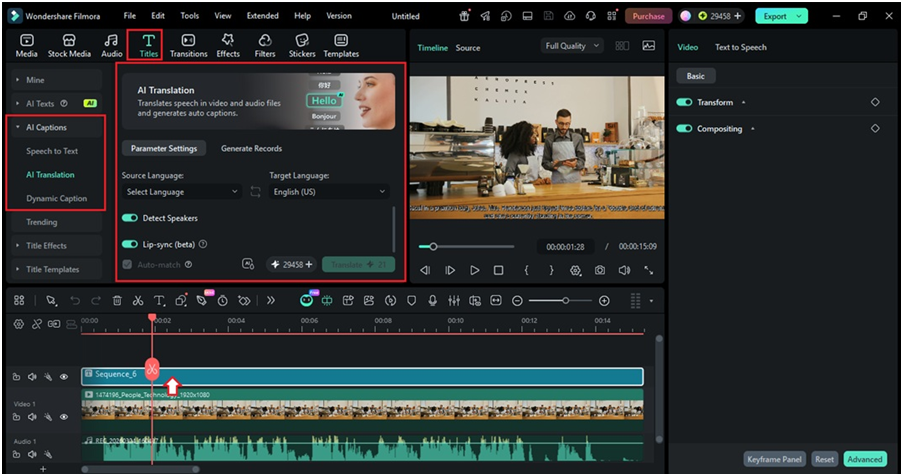
You can produce text in your native tongue and then use the automatic subtitle translator to reach 23 different languages. Both sets of captions can appear on the timeline so that you can cater to two audiences at once. Correct timing keeps the text in sync with your speech for a better viewer experience.
Audio Translation
Filmora does more than generate subtitles from video automatically. You can upload standalone audio files, and the AI tool produces a translated SRT file for you to download. You can also edit these files directly within the software to fix any minor errors.
Clone Your Voice
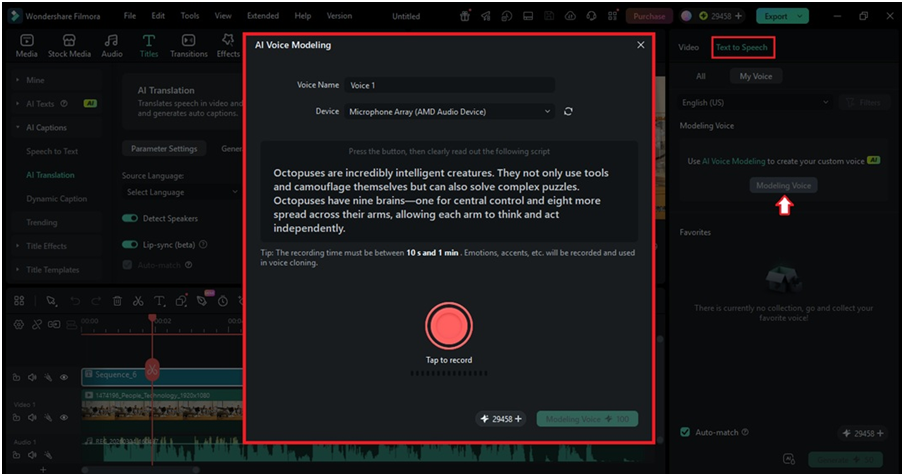
The auto subtitle generator pairs well with voice cloning technology. Filmora replicates your specific timbre and emotion in a new language so you still sound like yourself. It maintains your personal brand even when you speak to an audience in a different country.
Sync Lip Movements
Video translation in Filmora aligns the speaker’s mouth with the new words. This makes the final result look natural and professional. It also performs better than basic YouTube automatic captions that often lack visual accuracy.
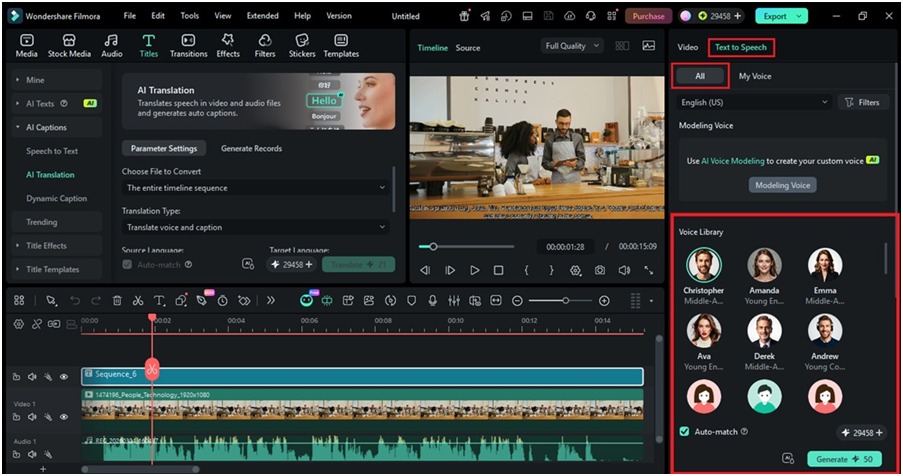
Pick a New Tone With Text-to-speech AI Voices For Free
You have access to over 48 different AI voices if you prefer not to use your own. These options include formal, excited, or mature tones for both male and female characters.
Part 5. Rank Higher in SEO With an AI Video Caption Generator
Compatibility won’t be an issue when you create auto captions. Filmora’s subtitle extraction tool works with almost any popular video file to generate auto captions.
Search engines cannot “see” the words you add to your video frames. Uploading a separate SRT file provides a text-based roadmap that platforms like YouTube or Facebook use to understand your topic. Metadata remains the most effective way to help your target audience find your work through organic search. See how you can do in Filmora:
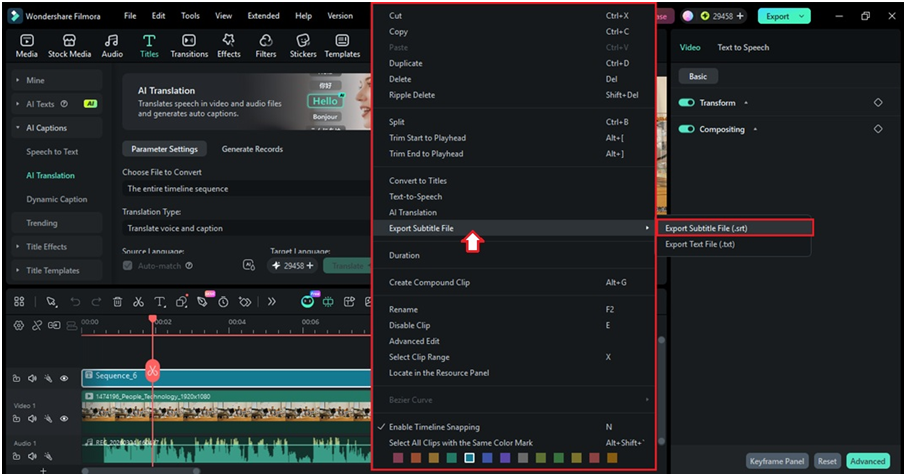
- Right-click the subtitle track on the editing timeline after the AI subtitle generator finishes its work.
- Select Export Subtitle File and save the document as an SRT file to maintain compatibility across all social platforms.
Check the file in your local folder. Now, you can upload the resulting file alongside your video to improve accessibility and ranking potential.
Conclusion
Video editing software makes it easier than ever to generate subtitles from video without spending hours on manual typing. Creators who use these files increase their visibility while making content accessible to the hard-of-hearing community. High-quality auto captions turn a simple video into a searchable asset that continues to attract viewers long after you hit publish. Try Filmora for free to generate automatic subtitles for your next project. Beginners find the intuitive interface easy to navigate for professional results. You can start today and reach a wider audience in a few steps.