A blog post can be nearly finished, the outline is solid, the draft is edited — and then everything stalls because there’s no usable header image. That bottleneck is more common than most content teams admit. Writers have the topic. Marketers have the angle. But finding a visual that actually fits the article? That’s where time disappears.
Stock images help sometimes, sure. Still, they can feel recycled fast, especially for thought leadership, niche explainers, or branded editorial content. Custom design solves that, but it also adds another step, another handoff, and usually another delay. That’s why many teams are starting with text to image AI: a faster way to turn a content brief or article idea into an original visual asset. And Media.io makes that process easier to test because it’s a model-first, browser-based creative platform built for prompt-to-image workflows without the weight of a traditional design setup.
What Text to Image AI Actually Does for Publishers
At its core, text to image AI converts a written prompt into a generated image. Simple idea. Useful one too.
For bloggers and editorial teams, that means you can describe the visual you need — a clean hero image, an illustration for a trend report, a concept visual for an opinion piece, or section graphics for a long-form article — and get image options without starting from scratch in a design app.
That matters because the real value here isn’t just novelty. It’s speed. You can move from content plan to usable visual much faster, reduce dependence on generic stock libraries, and create something that better matches the tone of the article. That said, results still depend on the prompt. If the subject, style, and format are vague, the output usually will be too.
Why Media.io Works Well for Blog and Article Visuals
Here’s the thing: not every publishing team wants to commit to one image engine and hope it fits every content style. Media.io takes a more flexible route. It’s a model-first creative platform, which means users can access multiple AI image models in one browser workflow instead of being boxed into a single engine.
That flexibility matters when one article needs a polished editorial visual and another needs something more conceptual. Media.io integrates some cutting-edge AI image generation models such as Gemini Nano Banana Pro and GPT Image 2, giving creators more room to match different visual directions without jumping across tools.
A few practical details stand out:
- 5000+ templates help speed up early visual ideation
- style presets make it easier to guide output without over complicating the process
- aspect ratio selection helps you create images for wide blog headers or supporting promos
- resolution options go up to 4K for cases where sharper publishing assets matter
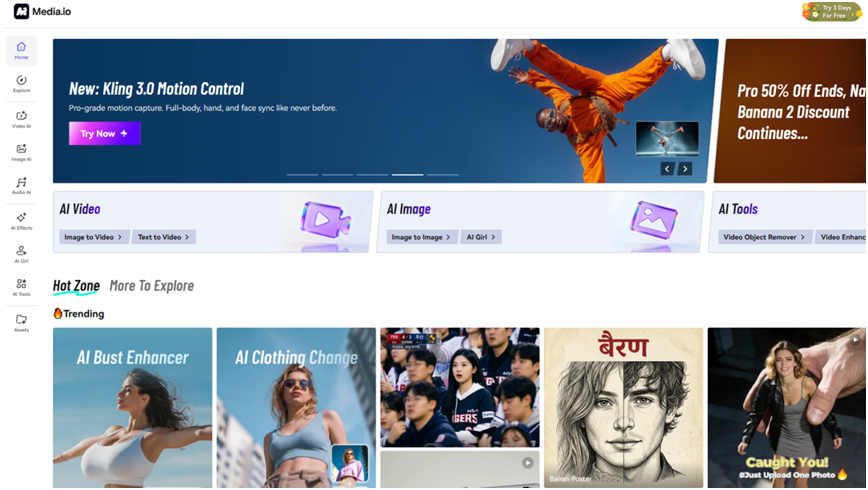
Free daily credits also lower the barrier to experimentation, which is useful if you want to test prompts before building a heavier workflow. Some advanced usage may require a subscription, but for many teams, starting is the hard part. This makes that part easier.
What You Can Create for a Blog Post
For blog publishing, text-to-image tools are most useful when the visual needs to match the idea of the article, not just a literal object in it.
You can create:
- Blog hero images that reflect the topic more closely than overused stock photos
- Editorial illustrations for explainers, trend roundups, opinion content, or industry commentary
- Section visuals that break up long articles and make dense pages easier to scan
- Concept imagery for brand storytelling, campaign-led blog posts, and thought leadership pieces
That range is what makes the workflow practical. You’re not just making “art.” You’re creating publishing assets.
How to Create Blog Visuals With Media.io
Step 1. Open Media.io and Navigate to AI Image > Text to Image
Start by launching Media.io in your browser, then go to AI Image > Text to Image. Once you’re there, enter a prompt based on your article topic, audience, and visual goal.
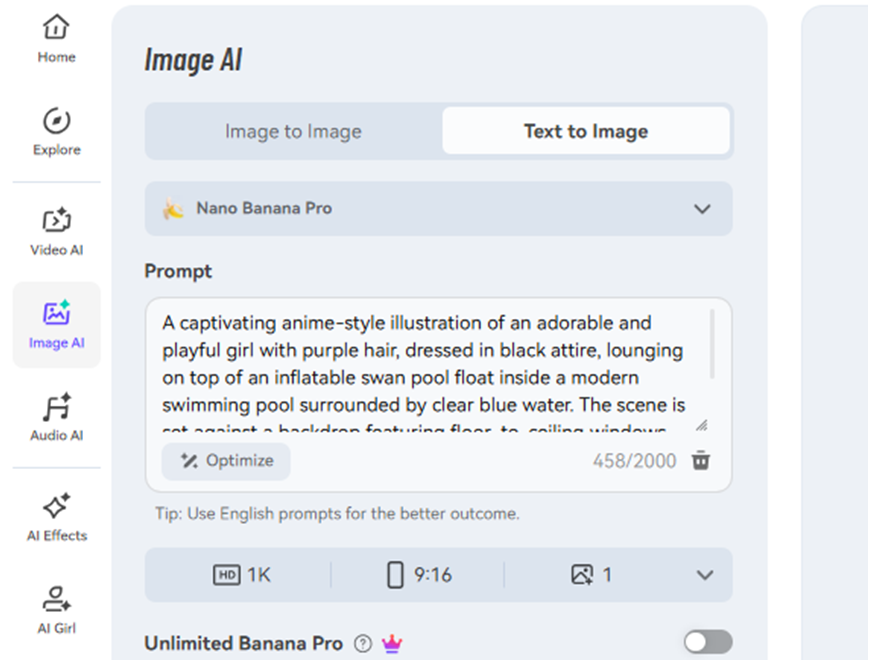
Try to be specific. Instead of typing something broad like “marketing blog image,” describe the subject, mood, composition, colors, and context. For example: modern editorial illustration for a blog post about AI productivity, clean layout, soft blue palette, laptop desk scene, minimal background, professional but creative tone. If you need a faster starting point, use a template for inspiration and then shape the prompt around your article angle.
Step 2. Choose a Model, Style Preset, and Aspect Ratio
Next, choose the model that best fits the kind of image you want to create. Different models can produce different visual feels, so it helps to match the model to the article’s tone rather than treating every post the same.
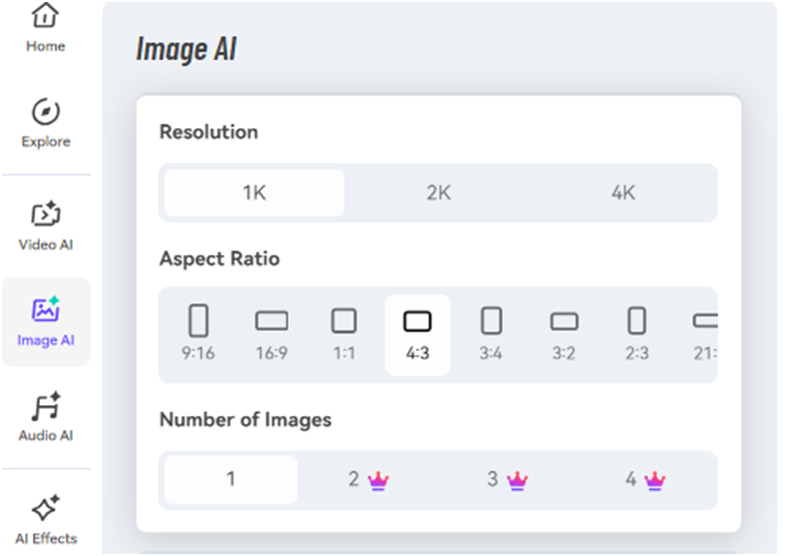
Then select a style preset. For blog visuals, useful directions might include modern editorial, clean marketing visual, cinematic concept art, or illustration-style output. After that, set the aspect ratio based on where the image will appear. Wide formats usually work best for blog headers, while vertical layouts may suit article promos or supporting social placements. If the image needs to hold up in larger layouts, choose a higher resolution option — up to 4K where needed.
Step 3. Generate, Review, and Refine Before Publishing
Once your prompt, model, and format are set, generate the image and review it against the article itself. Does it match the message? Does it feel on-brand? Will it sit well in the page layout?
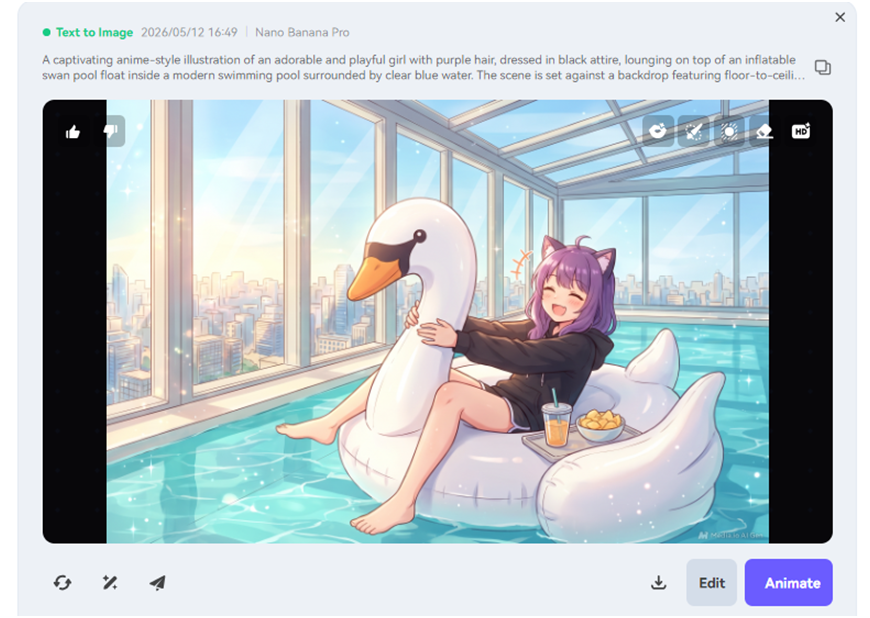
If the first output is close but not quite there, tweak the prompt or switch the style and regenerate. That usually goes faster than trying to fix a weak visual later. When the image looks usable, download it, or move into a light refinement or upscale step if it needs extra polish. From there, drop the finished asset into your CMS, blog draft, or broader content design workflow. That’s the real end goal — not just generating an image, but getting a publish-ready visual into production faster.
Tips for Getting Better Blog Images From Text Prompts
A few small changes can improve results a lot.
First, write for the content goal, not only the subject. A prompt for a finance explainer should look very different from one for a lifestyle feature, even if both mention “growth” or “trends.”
Second, add visual intent words when they matter: editorial illustration, minimalist layout, soft lighting, product-focused scene, bold concept art. Those cues often make the output more usable from the start.
Also, match the image format to the publishing slot early. If you already know the visual is for a wide header, set that upfront instead of remaking assets later for headers, embeds, or social previews.
And one more thing: generate a few variations. Not dozens. Just enough to compare. It’s a practical way to find something that feels original while still fitting your brand.
FAQs About Text to Image AI for Bloggers
Can beginners use text-to-image tools without design experience?
Yes. You don’t need formal design training to create useful blog visuals, though clearer prompts usually lead to better results.
How detailed should a prompt be for blog header images?
Detailed enough to describe the subject, style, mood, and format. Short prompts can work, but they often produce broader results.
Can I try Media.io with free daily credits first?
Yes. Free daily credits make it easier to test the workflow before committing to heavier usage.
What if the first image doesn’t match the article angle?
Adjust the prompt, switch the style preset, or try another model. A small change can make the result much more relevant.
Can generated images continue into a broader workflow?
Yes. After generation, images can move into refinement, upscale, or the next stage of your content production process.
Final Thoughts
For bloggers and content teams, text-to-image tools solve a very real problem: getting original visuals made fast enough to keep publishing on schedule. Compared with manual design workflows, the path is shorter and easier to repeat.
Media.io stands out here for practical reasons. You get multiple model choices, 5000+ templates, style presets, aspect ratio flexibility, and browser-based convenience in one workflow. Of course, prompt quality still affects the result, and a stable internet connection helps when generating assets online.
If you want to move from an article idea to a publish-ready visual faster, start with a prompt, generate a few options, and only refine the images worth keeping. It’s a simpler workflow. And for high-volume publishing, that simplicity adds up.