Although losing essential text messages can be stressful, recovery is still possible. A lot of individuals delete messages by mistake or lose them after software updates. Instead of panicking, multiple quick ways are available to restore them. Among the top choices, the Dr.Fone data recovery app provides an effortless solution to retrieve lost messages. Thus, in this article, you will explore stepwise solutions to help you recover messages.
Part 1. Why Do Text Messages Get Deleted on Android?
Many times, text messages disappear from phones without any clear reason. So, understanding the reasons from the following points can help you protect your data better:
- System Update: Major Android updates reset phone settings or remove saved files and messages. These changes may erase your stored texts during the system upgrade process.
- App Malfunctions: Messaging apps can crash, causing message loss or corruption. Such technical problems prevent the proper display of saved conversations.
- Storage Issues: When the phone runs low on space, older messages may get deleted. This happens because the device prioritizes newer files and removes older saved data.
- Mistaken Deletion: Many users delete messages by mistake while cleaning storage. Such errors are common and make it hard to retrieve deleted text messages on Android.
- Sync Errors: Sometimes, syncing failures with cloud services like Google Drive cause message loss. This problem usually arises when backups stop working or sync gets interrupted.
Part 2. 3 Common Ways to Recover Deleted Text Messages on Android
There are several simple ways to recover deleted messages without much hassle. So, this part shows the 3 basic Android file recovery methods to restore deleted texts:
1. Check the Recycle Bin or Archives
The easiest way to recover lost messages is by checking the Recycle Bin or Archives. Many Android devices automatically store deleted messages for up to 30 days. During this period, users can view and restore them before permanent removal. This option is best for those who want to retrieve deleted text messages on Android. Anyhow, go through the given steps to check for archived messages:
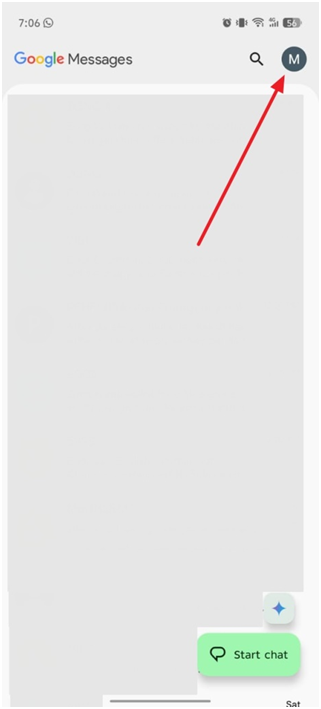
Step 1. When you access the “Messages” app, tap on the “Profile” icon to access a new menu.
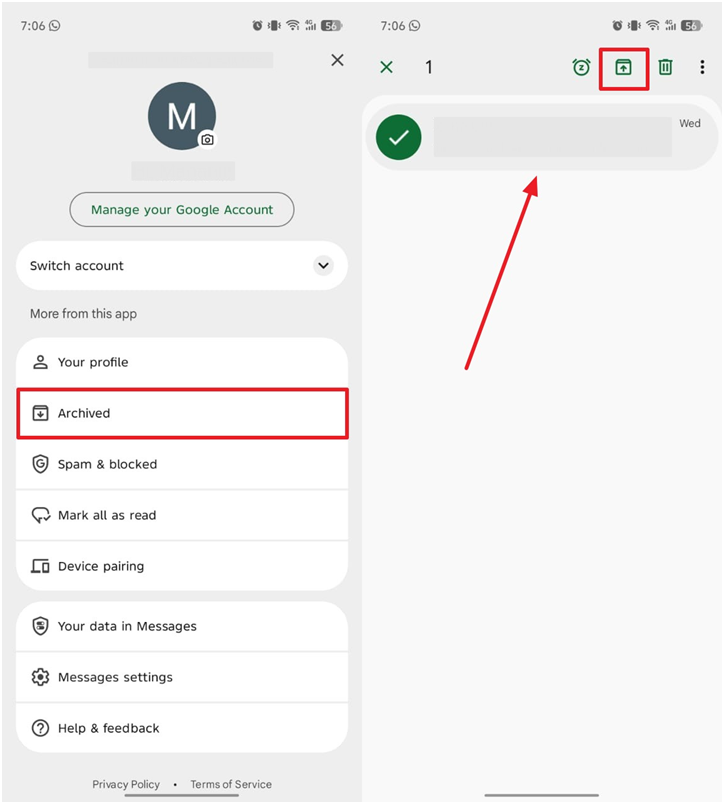
Step 2. Upon accessing it, head to the “Archived” section to select the disappeared chat and tap “Unarchived.”
Cons
- Notifications for archived messages may not appear, causing users to miss essential texts.
- Manual searching can be confusing if multiple chats or accounts are listed.
2. Restore from Google Drive Backup
Restoring messages from a Google Drive backup is another safe method. It allows users to recover deleted texts during phone setup after a factory reset. This native feature simplifies Android file recovery without using extra tools or advanced settings. It ensures users regain both messages and other essential data without much effort. Let’s explore how you can restore messages through backup:
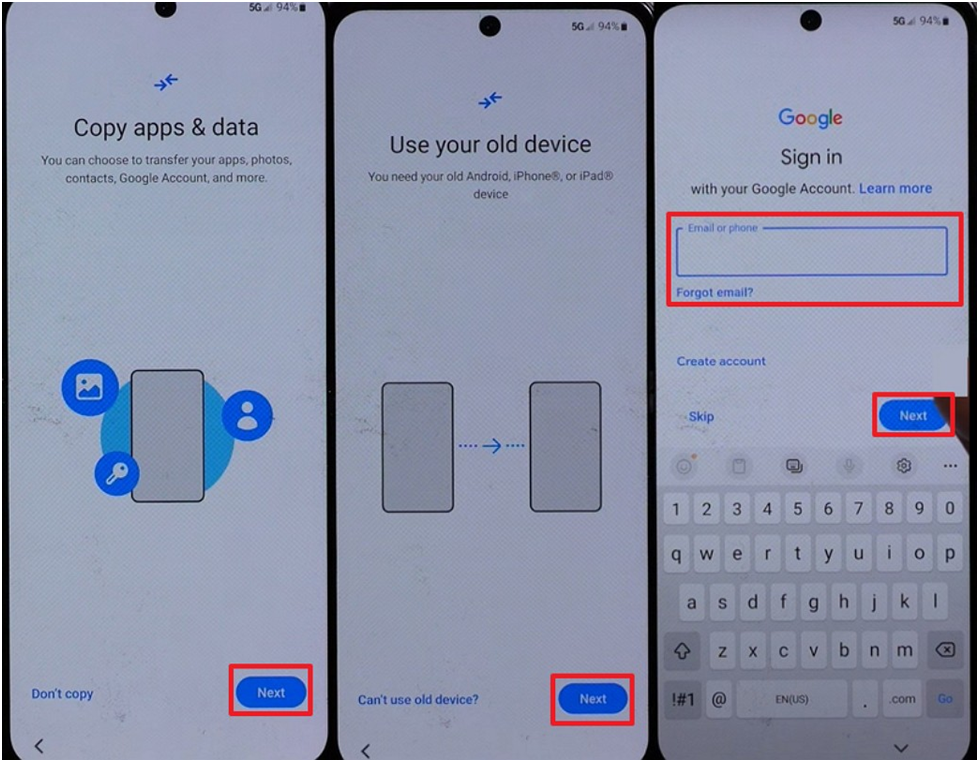
Step 1. While setting up your Android, press “Next” on the “Copy Apps & Data” screen and then hit “Next.” Afterward, sign in with the same Google Account where your backup is available.
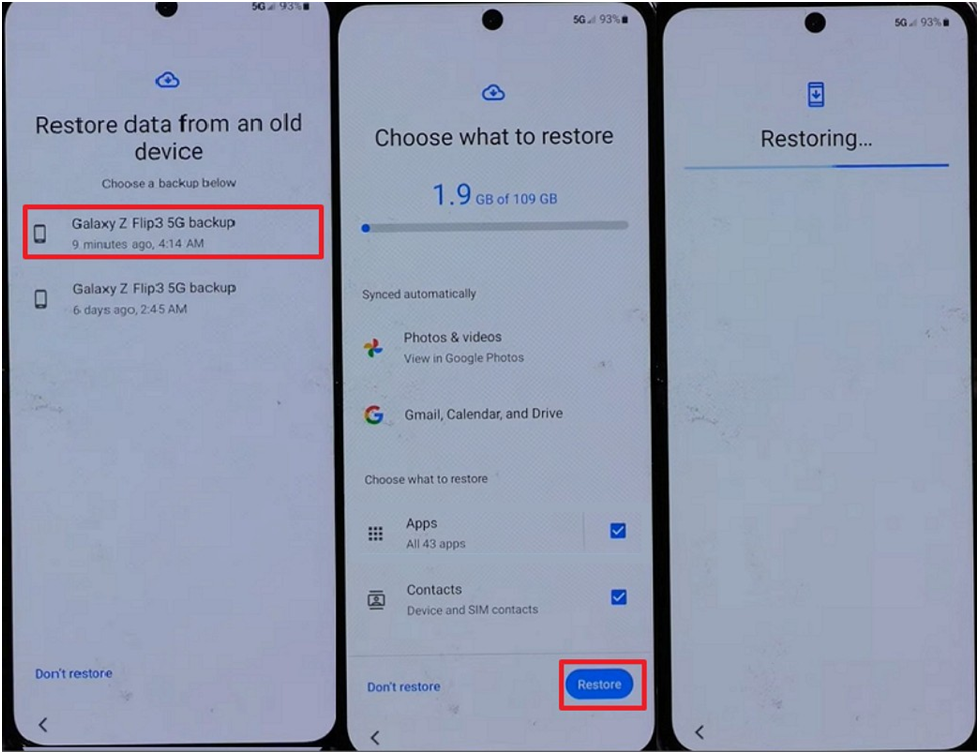
Step 2. Following this, choose the recently backed up file to select “Messages,” and press “Restore.”
Cons
- Without a prior Google Drive backup, recovery of messages is impossible.
- Only messages included in the last backup can be restored successfully.
3. Ask the Sender
Another simple and effective way to recover lost messages is by asking the sender. They can forward or resend important texts quickly without any technical tools. This method works even when backups or apps fail. Users can easily access exact conversations directly from the sender. Thus, it’s a direct and safe approach to recover important communication without software.

Cons
- The sender might delete the conversation before you request it again.
- This method may take time if the sender replies late or forgets to reply.
Part 3. Why Dr.Fone Data Recovery App Is the Best Choice?
When basic methods fail to recover your messages, users need a reliable solution beyond basic recovery attempts. To cater to this need, the Dr.Fone recovery app stands out because it focuses on safe, structured Android data restoration. It supports more than 6,000 Android devices across major brands like Samsung and Huawei. Along with messages, the app restores multiple data types, such as contacts and files.
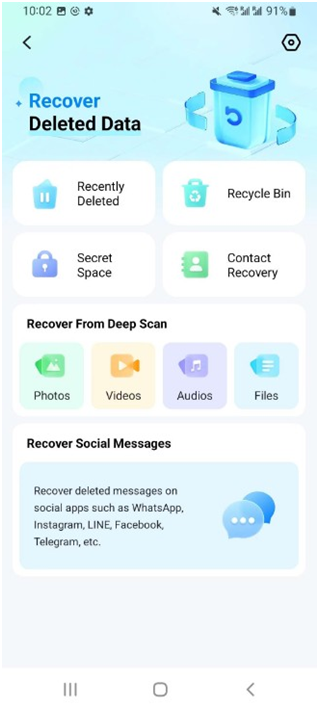
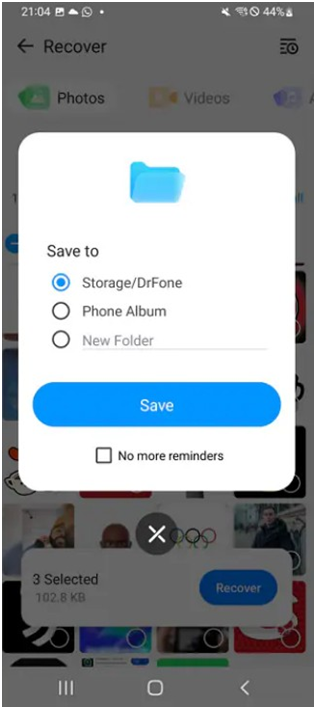
Dr.Fone comes with a Recover Deleted Data function to scan and recover deleted messages. Also, save options include Dr.Fone folder, phone album, or a custom new folder. The app’s Recovery History feature lists all sessions with file names, dates, and locations. It tracks multiple recoveries to help manage and access past results easily.
Part 4. Step-by-Step Guide to Retrieve Deleted Text Messages Using Dr.Fone
The Dr.Fone app simplifies recovery after basic methods fail to find lost messages. It offers clear steps for safe scanning and restoring deleted texts quickly. So, review the steps given below to use this Dr. Fone data recovery app to retrieve messages:
Step 1. Access the Data Recovery feature in Dr.Fone
Open the Dr.Fone app and choose “Recover Deleted Data” from the main interface. As you see data types, select “Messages” as the category, then tap “Allow” to start the scan.
Step 2. Review and Select Lost Text Messages
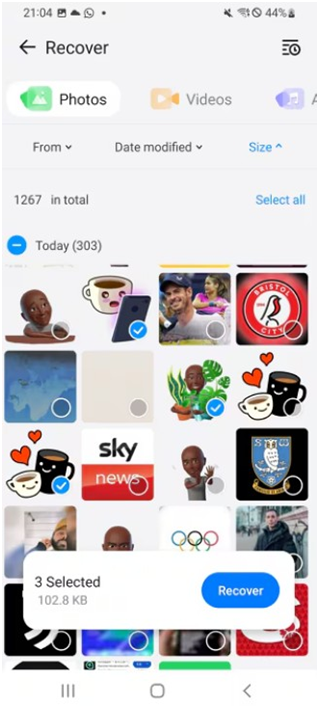
Once scanning is completed, browse through the recovered messages shown on the screen. Mark the specific chats you want to restore and press “Recover.”
Step 3. Save the Retrieved Messages to Your Phone
Afterward, choose a preferred storage location when prompted by the app. Later, press “Save” to finalize the recovery and export the restored messages.
Part 3. Tips to Prevent Message and Data Loss on Android
Losing messages on Android can be stressful, but prevention is always better. Using tools like the Dr.Fone recovery app and proper practices helps protect essential texts. So, these simple practices will help protect your data and reduce future message loss:
- Regular Backup: Create backups frequently to Google Drive or local storage to secure data. Scheduled backups ensure you can restore messages whenever a mistaken deletion occurs.
- App Updates: You should keep messaging apps updated to avoid crashes or technical glitches. Updates fix bugs that may otherwise delete or corrupt messages.
- Cloud Sync: Enable cloud synchronization to automatically save messages and app data regularly. Cloud backup ensures you can restore texts without additional software or tools.
- Monitor Storage: Low space triggers system cleanup that may delete valuable text data. Thus, regularly check phone storage to prevent automatic removal of older messages.
- Export Chats: Periodically export important chats as text files or PDFs for extra safety. This method provides offline access and ensures messages remain accessible anytime.
Conclusion
In summary, you have explored common causes, along with simple fixes and smart ways to restore messages. Basic checks help first, while advanced steps handle deeper message loss situations on Android. Also, preventive habits like backups and storage checks reduce future message risks for everyone. When recovery becomes urgent and seems impossible, Dr.Fone’s data recovery app offers guided message restoration support.